
Blink an LED
[separator style_type=”shadow” top_margin=”-110″ bottom_margin=”100″ sep_color=”” icon=”” width=”” class=”” id=””][fullwidth backgroundcolor=”” backgroundimage=”” backgroundrepeat=”no-repeat” backgroundposition=”left top” backgroundattachment=”scroll” video_webm=”” video_mp4=”” video_ogv=”” video_preview_image=”” overlay_color=”” overlay_opacity=”0.5″ video_mute=”yes” video_loop=”yes” fade=”no” bordersize=”” bordercolor=”” borderstyle=”” paddingtop=”0px” paddingbottom=”0px” paddingleft=”0px” paddingright=”0px” menu_anchor=”yes” equal_height_columns=”no” hundred_percent=”no” class=”no” id=”0px”][one_sixth last=”no” spacing=”yes” background_color=”” background_image=”” background_repeat=”no-repeat” background_position=”left top” border_size=”0px” border_color=”” border_style=”” padding=”” class=”yes” id=””][/one_sixth][two_third last=”no” spacing=”yes” background_color=”” background_image=”” background_repeat=”no-repeat” background_position=”left top” border_size=”0px” border_color=”” border_style=”” padding=”” class=”yes” id=””][fusion_text]The first program you usually write when learning a new programming language is called “Hello World”.
The program outputs those words as its only function. When learning to program micro-controllers such as the Arduino, the equivalent of “Hello World” is a program that blinks an LED. Guess what it is called – Blink.
You Will Need:
- An LED (any color works fine)
- A 220 Ohm Resistor
- An alligator clip (not essential but makes the circuit easier)
- Fourteen small and smooth rocks from the a western pacific island (not essential but adds an esoteric feel)
NOTE: On most Arduino boards there is an LED soldered right by pin 13 – it is actually connected to pin 13 – so if you do not have an LED laying around (or a resistor for that matter), you can use the board mounted LED – it will blink with the same sketch.
Step-by-Step Instructions
- Insert the short leg of the LED into the pin labeled GND on your Arduino.
- Connect the 220 Ohm resistor to pin 13 on the Arduino. It doesn’t matter which way you connect the resistor.
- Now use the alligator clip to connect the long leg of the LED to the other leg of the resistor. If you do not have an alligator clip, you can twist the two leads together as best as you can to get a steady electrical connection.
- Plug your Arduino board into your computer with a USB cable.
- Open up the Arduino IDE.
- Go to File > Examples > 01.Basics > Blink
- Click the verify button on the top left. It should turn orange and then back to blue.
- Click the upload button. It will also turn orange and then blue once the sketch has finished uploading to your Arduino board.
- Now monitor you Arduino board – the LED should be blinking.
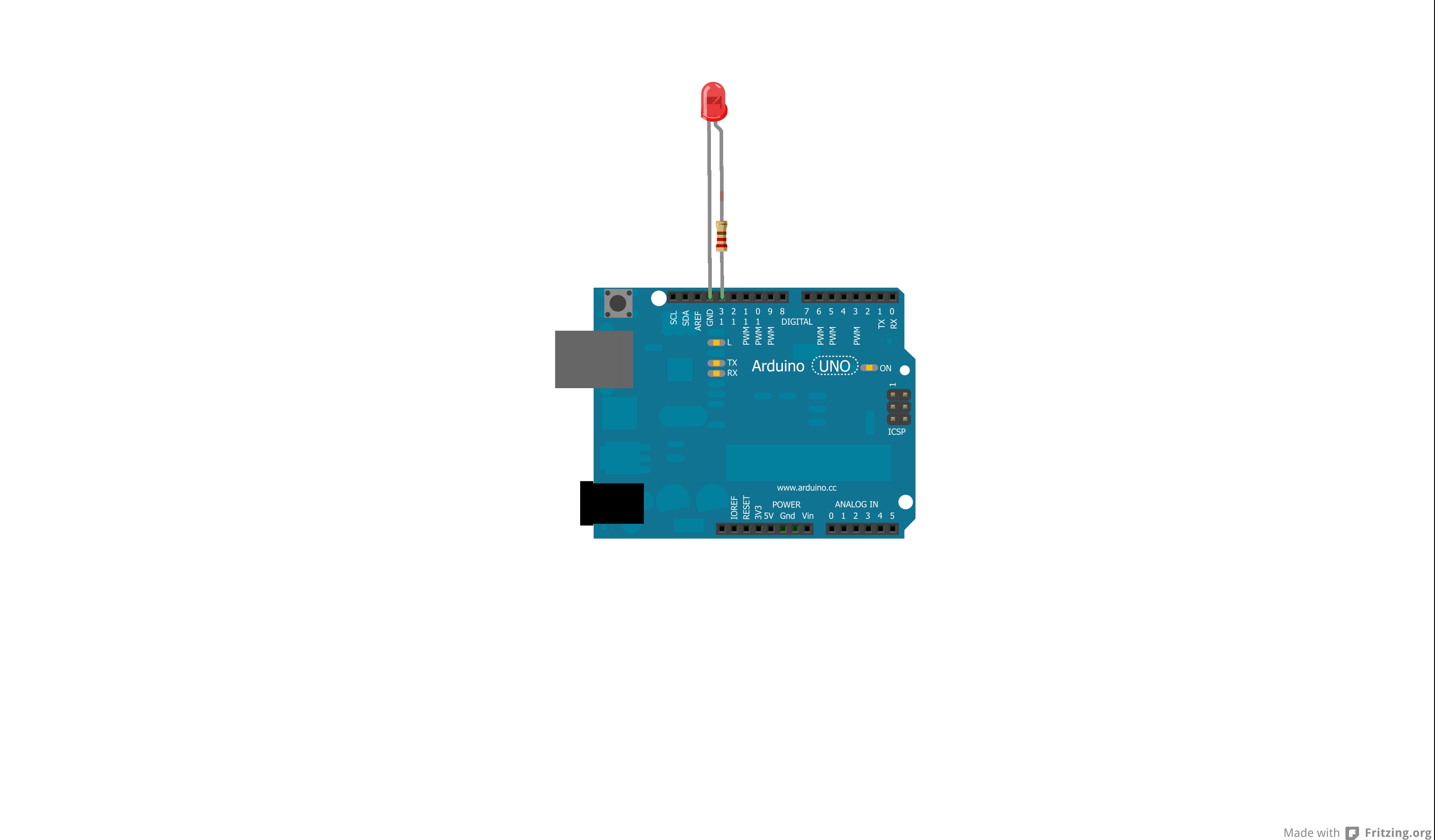
This image was made using Fritzing.
Examine the Sketch
Make sure to read the comments at the top. Note the use of the multi-line comments syntax /* */. It is always a good idea to take time and see what the programmer has to say about the sketch they have written. She will likely be terse about how the program works or what it is supposed to accomplish. She might tell you how to set up the circuit.
The first block of code you come to after the description is where they initialize and declare variables. Here there is only one variable – and it gets declared and initialized on the same line.
int led = 13; //declare and initialize a variable with a single statement
You should be familiar with this from the last tutorial on variables. All we have done is made a variable and named it “led”. This variable will hold integers and we put the value 13 into the variable. If this seems confusing, it might not hurt to review the last tutorial on variables – or you can voyage on – your call.
The next block of code you encounter in the Blink sketch is…
void setup() {
// initialize the digital pin as an output.
pinMode(led, OUTPUT);
}
Recall that the setup() function will be in almost every Arduino sketch that you encounter. Inside the curly braces is code that will only be run once by your Arduino. For this program we see the function pinMode() is being used.
Let me start by saying that pinMode() is a wonderful function. If you recall, functions can take arguments. The pinMode() function takes two arguments – it wants to know which pin you are going to assign a mode to, and what mode you want that pin to be. The pin number is easy, 0-13 for any of the digital pins, and A0 through A5 for any of the analog pins.
The mode is an easy designation also – you are going to want the pin to be an INPUT – good for reading a sensor. Or an OUTPUT – good for powering an LED.
So in this example, we set the mode of pin 13 as an OUTPUT, because we want to light up an LED.
Moving on to the final block of code, we come to out favorite and ubiquitous function void loop().
void loop() {
digitalWrite(led, HIGH); // turn the LED on (HIGH is the voltage level)
delay(1000); // wait for a second
digitalWrite(led, LOW); // turn the LED off by making the voltage LOW
delay(1000); // wait for a second
}
You may recall that void loop() runs over and over again. In this loop, we see two function: digitalWrite() and delay().
The function digitalWrite() is used to apply either HIGH or LOW voltage to a pin. HIGH will apply 5 volts to the pin you designate and LOW will apply 0 volts. If you apply 5 volts to a pin that is connected through an LED to ground, then your LED will light up. There is a voltage difference between the pin and ground, thus a current is able to flow through the LED. If you apply 0 volts to the same pin the LED will not light up, because no current is being “pushed” through the circuit – the voltage at ground and at the pin are both zero.
digitalWrite() takes two arguments, the first is what pin you will be applying voltage to and the other is what level of voltage, either HIGH or LOW as we have discussed above.
digitalWrite(led, HIGH); // turn the LED on (HIGH is the voltage level)
So we start out the loop by applying HIGH voltage to pin 13, where our LED is attached. Notice that we don’t explicitly say pin 13 in the digitalWrite() function, but we refer to the variable “led”, which we previously assigned the value 13 to. Variables are awesome like that – they can take the place of numbers and are much easier to change and track.
So the LED will get bright – we just applied 5 volts, so hey, that makes sense. The next thing we do is delay the Arduino sketch so we can enjoy the bright glow of our LED. to do this we use the delay() function.
The delay() function takes one argument – the number of milliseconds you want the program to delay. In this case we want 1000 milliseconds, which makes one second.
So first we said, “apply high voltage” and now we say – wait one second. Our LED will stay glowing for exactly one second. But that gets old, and we have to stay true to the name of the sketch, so next we tell the Arduino to write a LOW voltage to pin 13 – to do this we use the same function as before, namely digitalWrite(), but this time we want LOW voltage instead of HIGH.
Now the LED goes dark, because no current is flowing. In order to sustain that darkness we delay the board – so we use the delay() function again for one second. Now the LED is dark for one long second.
Now we are at the end of the loop. We turned the LED on for a second, then we turned it off for a second – what next? Once the Arduino completes the loop, it starts at the top of the loop again and repeats like a broken record.
Once again, the LED will light up, delay a second and then go dark for one second. And repeat – now you have a blinking LED – pretty cool for just a couple lines of code!
Try on Your Own Challenge:
- Change the value of the delay functions. What happens?
- Change the number of the led variable to 12 and adjust the resistor appropriately. See what happens.
Further Reading:
[/fusion_text][/two_third][one_sixth last=”yes” spacing=”yes” background_color=”” background_image=”” background_repeat=”no-repeat” background_position=”left top” border_size=”0px” border_color=”” border_style=”” padding=”” class=”yes” id=””][/one_sixth][/fullwidth]