
If-Else Statement, Comparison Operators and Conditions
[separator style_type=”shadow” top_margin=”-110″ bottom_margin=”100″ sep_color=”” icon=”” width=”” class=”” id=””][fullwidth backgroundcolor=”” backgroundimage=”” backgroundrepeat=”no-repeat” backgroundposition=”left top” backgroundattachment=”scroll” video_webm=”” video_mp4=”” video_ogv=”” video_preview_image=”” overlay_color=”” overlay_opacity=”0.5″ video_mute=”yes” video_loop=”yes” fade=”no” bordersize=”” bordercolor=”” borderstyle=”” paddingtop=”0px” paddingbottom=”0px” paddingleft=”0px” paddingright=”0px” menu_anchor=”yes” equal_height_columns=”no” hundred_percent=”no” class=”no” id=”0px”][one_sixth last=”no” spacing=”yes” background_color=”” background_image=”” background_repeat=”no-repeat” background_position=”left top” border_size=”0px” border_color=”” border_style=”” padding=”” class=”yes” id=””][/one_sixth][two_third last=”no” spacing=”yes” background_color=”” background_image=”” background_repeat=”no-repeat” background_position=”left top” border_size=”0px” border_color=”” border_style=”” padding=”” class=”yes” id=””][fusion_text]
In the last lesson we learned about the “If statement”. The “If statement” was the perfect choice for setting up instructions to run only when certain conditions are met. “If 30 seconds has passed – stop the heating element” or “If the sensor perceives a wall – turn 180 Degrees”.
This lesson will expand on this amazingly useful function and show you how to stack different conditions to meet the flexibility you will want in your designs.
You Will Need
- Arduino
- USB Cable
- Potentiometer (doesn’t matter what resistance range)
- 220 Ohm Resistor
- LED (any color)
- Jumper Wires (3)
- solder-less breadboard
- Alligator Clip
- Dull machete with wooded handle
Step-by-Step Instructions
- Place your potentiometer in the breadboard.
- Place a jumper wire from one of the outside leads of the potentiometer to the 5V pin on Arduino.
- Place a jumper wire from the other outside lead of the potentiometer to one of the GND pins.
- Place the final jumper wire from the center pin of the potentiometer to the A0 pin.
- Connect either side of the 220-Ohm resistor to pin 13.
- Connect the short leg of the LED to the GND (the GND pin next to pin 13 is the most convenient).
- Attach the other leg of the resistor to the long leg of the LED.
- Plug your Arduino into your computer with the USB cable.
- Open the Arduino IDE.
- Go to File > Examples > 05.Control > IfStatementConditionals
- Click the Verify button (Top Left). The button will turn orange and then blue once finished.
- Click the Upload button. The button will turn orange and then blue when finished.
- Open up the Serial Monitor window. Tools > Serial Monitor.
- Adjust the potentiometer and watch as the LED turns on and off based on the knob position.
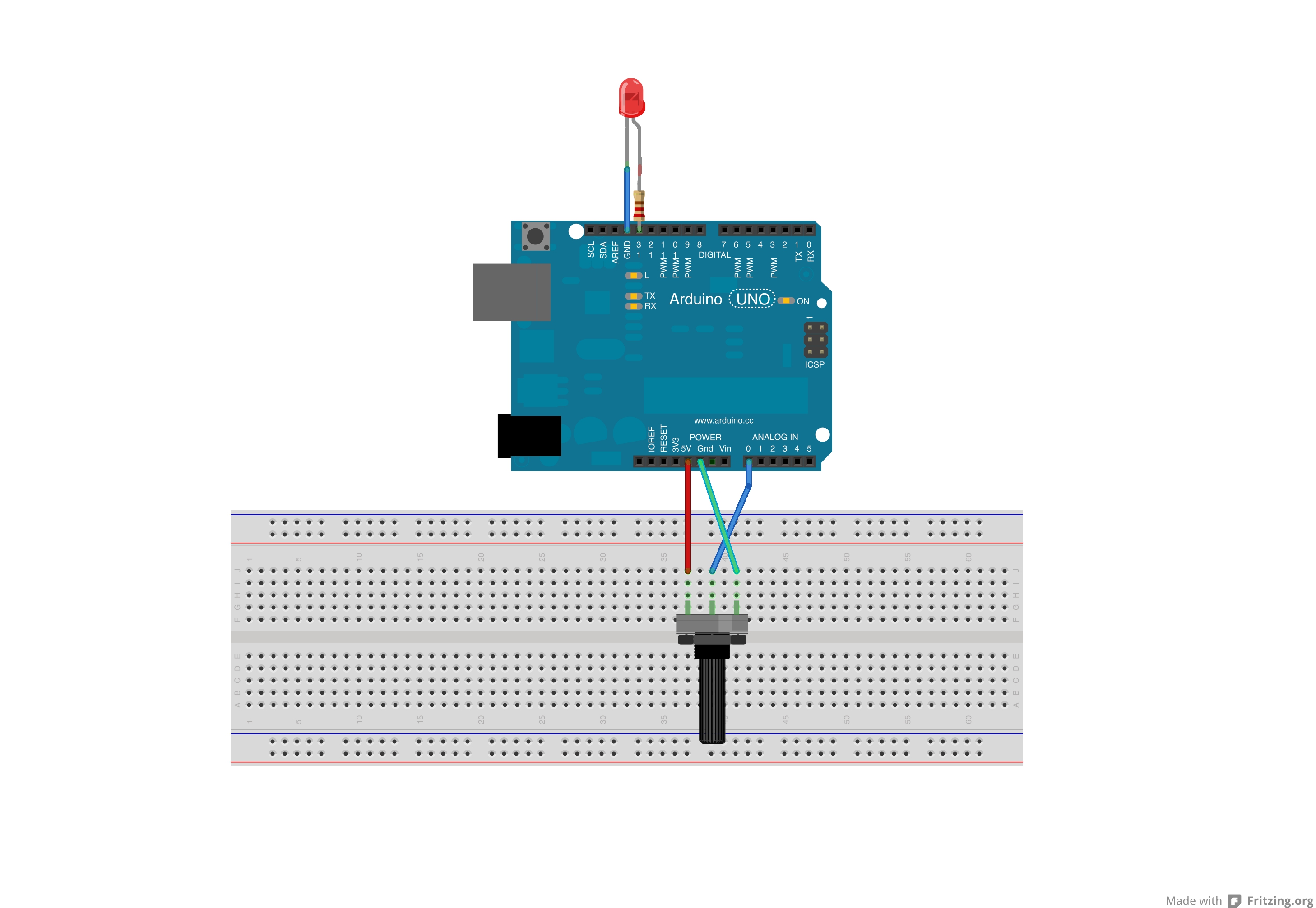
This image built with Fritzing.
Circuit Talk
If you recall from the previous lessons, a potentiometer is a voltage divider. You have 5 volts at one side of the potentiometer and 0 volts at the other side – you are using the 5volt pin and the GND pin.
As you adjust the knob on the potentiometer the amount voltage that will be applied to the center pin changes. The voltage is being divided. This means that the voltage at pin A0 where the center pin is attached will be somewhere between 0 and 5 volts based on where you have the potentiometer knob adjusted.
Discuss the Sketch
Below is the sketch in its entirety from the Arduino IDE. The basic concept of the sketch is this – we measure voltage at an analog pin from 0 to 1023 – this voltage changes based on where the knob of the potentiometer is set. Then we define a threshold value somewhere in this range, lets pick the number 400. When the value measured at the analog pin is above 400, we turn on the LED at pin 13, when the voltage is below 400 we turn the LED off. It’s as easy as that.
Make sure you read this sketch and try to figure out what is taking place before moving on.
/*

Conditionals - If statement

This example demonstrates the use of if() statements. It reads the state of a potentiometer (an analog input) and turns on an LED only if the LED goes above a certain threshold level. It prints the analog value regardless of the level.

The circuit:

* potentiometer connected to analog pin 0.

Center pin of the potentiometer goes to the analog pin.

side pins of the potentiometer go to +5V and ground

* LED connected from digital pin 13 to ground

* Note: On most Arduino boards, there is already an LED on the board

connected to pin 13, so you don't need any extra components for this example.

created 17 Jan 2009

modified 9 Apr 2012

by Tom Igoe

This example code is in the public domain.

http://arduino.cc/en/Tutorial/IfStatement

*/

// These constants won't change:

const int analogPin = A0;    // pin that the sensor is attached to

const int ledPin = 13;       // pin that the LED is attached to

const int threshold = 400;   // an arbitrary threshold level that's in the range of the

                                                        //analog input

void setup() {

// initialize the LED pin as an output:

pinMode(ledPin, OUTPUT);

// initialize serial communications:

Serial.begin(9600);

}

void loop() {

// read the value of the potentiometer:

int analogValue = analogRead(analogPin);

// if the analog value is high enough, turn on the LED:

if (analogValue > threshold) {

digitalWrite(ledPin, HIGH);

}

else {

digitalWrite(ledPin, LOW);

}

// print the analog value:

Serial.println(analogValue);

delay(1);        // delay in between reads for stability

}
This program might look kind of long to you – the previous ones were a bit shorter. A good way to approach any program long or short is to cut it up into chunks and only consider pieces of it at a time. The first chunk is this sketch is the multi-line comments that clearly describe:
- What the program will do
- Generally how the program will accomplish it
- How to set up the circuit and the components you will need
- Any pertinent notes
- The license the program is released under (if any)
- The author, date and version number
This might seem like a lot of stuff – but I would recommend you do the same thing for your programs! This information will not only help you understand what the heck you intended when you wrote the program but if you make it available for others than it adds to the usefulness.
Some of the functions that are now integrated into the Arduino IDE were created by people just like you – they had a problem, they found a solution with some well written code, they made it available to all the Arduino users in the world – and everybody else found it useful – and before you know it your code is famous and you win the Nobel peace prize.
Lets move onto the first block of code that will be executed by the Arduino…
const int analogPin = A0; // pin that the sensor is attached to
const int ledPin = 13; // pin that the LED is attached to
const int threshold = 400; // an arbitrary threshold level that’s in the range of the
//analog input
Notice that all the variables here have const in front of them. This keyword stands for constant. A constant is what is called a qualifier – it adjusts the behavior of the variable being declared. It is kind of like an adjective in a sentence – “The squishy material”, squishy qualifies what the material will behave like.
Now it might seem counterintuitive to the whole point of variables, but the constant qualifier will stop the variable from ever changing through out your program. It protects the value from start to finish.
Why do this? What can happen is that you unintentionally try to write new value to the variable when you didn’t mean to. It happens more often than you might think – so I would recommend using constants when the variable will not change in the program.
The integer constants we declare are pretty straightforward. The variables ‘analogPin’ and ‘ledPin’ are which pins the potentiometer and LED will be attached to on the Arduino board. ‘threshold’ is the arbitrary number we choose to be the condition at which we want to turn our LED on or off.
The next block of code is setup(). We have to set the mode of a pin here and set up serial communications.
void setup() {
// initialize the LED pin as an output:
pinMode(ledPin, OUTPUT);
// initialize serial communications:
Serial.begin(9600);
}
Recall that all pins are by default set to INPUT, so we do not have to explicitly set the pin mode for our analogPin A0 as an INPUT – though I would argue it is best to do so for clarity.
By now you should have serial communication down pat. We use the begin() function from the Serial library with a baud rate of 9600.
Now that we have things setup, lets get into the loop(). The first line of code we encounter reads from the value at the analog pin A0 and assigns this value to an integer variable called analogValue.
int analogValue = analogRead(analogPin);
To do this we use the analogRead() function. Recall that analogRead() will return a value between 0 and 1023. This range is based on a voltage from 0 to 1023. This value will change as we adjust the potentiometer. So this line of code is checking the position of the potentiometer every time through the loop.
The next thing we want to do is compare the value we just got from the analog pin to our threshold value. The If-Else Statement is perfect for this.
if (analogValue > threshold) {
digitalWrite(ledPin, HIGH);
}
else {
digitalWrite(ledPin, LOW);
}
So you have seen the ‘If Statement’ before, now we add to it an ‘Else Statement’. The ‘If Statement’ checks a condition in the parenthesis, if it is TRUE, then the code in the curly brackets is executed – if the condition is not met (FALSE), then it moves onto the ‘Else Statement’. Consider this pseudo code:
if(apple is NOT rotten) {
Put_Apple_in_Basket()
}
Else{
Throw_Apple_At_Brother()
}
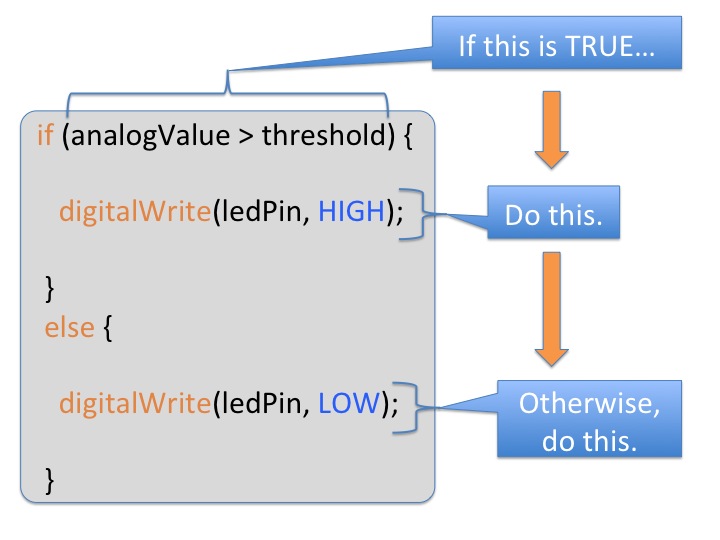
You can see that the ‘Else Statement’ gives you control over what to do when the condition in the ‘If Statement’ is not met. In a later lesson we will talk about the ‘ElseIf Statement’ which will offer even further control over conditions.
In this example the condition we are interested in is thus…
analogValue > threshold
If this is TRUE we turn the LED on by using the digitalWrite() function…
if (analogValue > threshold) {
digitalWrite(ledPin, HIGH);
}
If this condition is FALSE then we turn off the LED by executing the code inside the curly brackets of the Else Statement…
else {
digitalWrite(ledPin, LOW);
}
Lets do a quick review of Comparison Operators…
The condition you set will use what are called Comparison Operators. The list on the Arduino Reference page is as follows…
- == (equal to)
- != (not equal to)
- < (less than)
- > (greater than)
- <= (less than or equal to)
- >= (greater than or equal to)
These give you a broad spectrum of comparisons you can make.
So now that we have turned the LED on or off depending on the position of the potentiometer, lets see exactly what values are being read. We want to do this to ensure the program is doing what we think it should and also to make sure our potentiometer (sensor) is working properly.
// print the analog value:
Serial.println(analogValue);
This line of code uses the println() function from the serial library – this will send the values from the Arduino to your computer. Adjust your potentiometer and watch the values change in the Serial Monitor window. Adjust the potentiometer so the value is right at the 400 threshold and make sure the LED is responding appropriately.
Finally, we want to slow down the readings to add some stability. We do this with the delay() function.
delay(1); // delay in between reads for stability
So let’s recap. First we read the value at the analog pin and assign that value to a variable. Next we check if that variable is more than or less than our threshold value. If it is above the threshold we turn the LED on, if it is below the threshold we turn the LED off. We want to see what the actually values at the analog pin are, so we print them to the serial monitor. Finally we wait a millisecond before our next reading – which starts the loop at the top.
You can see how handy the If-Else Statement can be. As I have said previously, the ‘If-Else Statement’ is a staple of programming – you will see it or a form of it, in any language you encounter henceforth.
Try On Your Own Challenges
- Adjust the value of the “threshold” variable.
- Write an additional If Statement to turn on the LED when the analogValue variable is less than 100. The LED should turn on when analogValue is greater then 400 and less then 100.
Further Reading
- If-Else Statement – From the Arduino Reference
- More on the If-Else statement – The example sketch on the Arduino Website
[/fusion_text][/two_third][one_sixth last=”yes” spacing=”yes” background_color=”” background_image=”” background_repeat=”no-repeat” background_position=”left top” border_size=”0px” border_color=”” border_style=”” padding=”” class=”yes” id=””][/one_sixth][/fullwidth]